Your bot, on your Tesla's big screen.
Open botcanvas.us in the car's browser, type the pairing code your bot gives you, and whatever your bot sends (text, pictures, links, charts) shows up full screen.
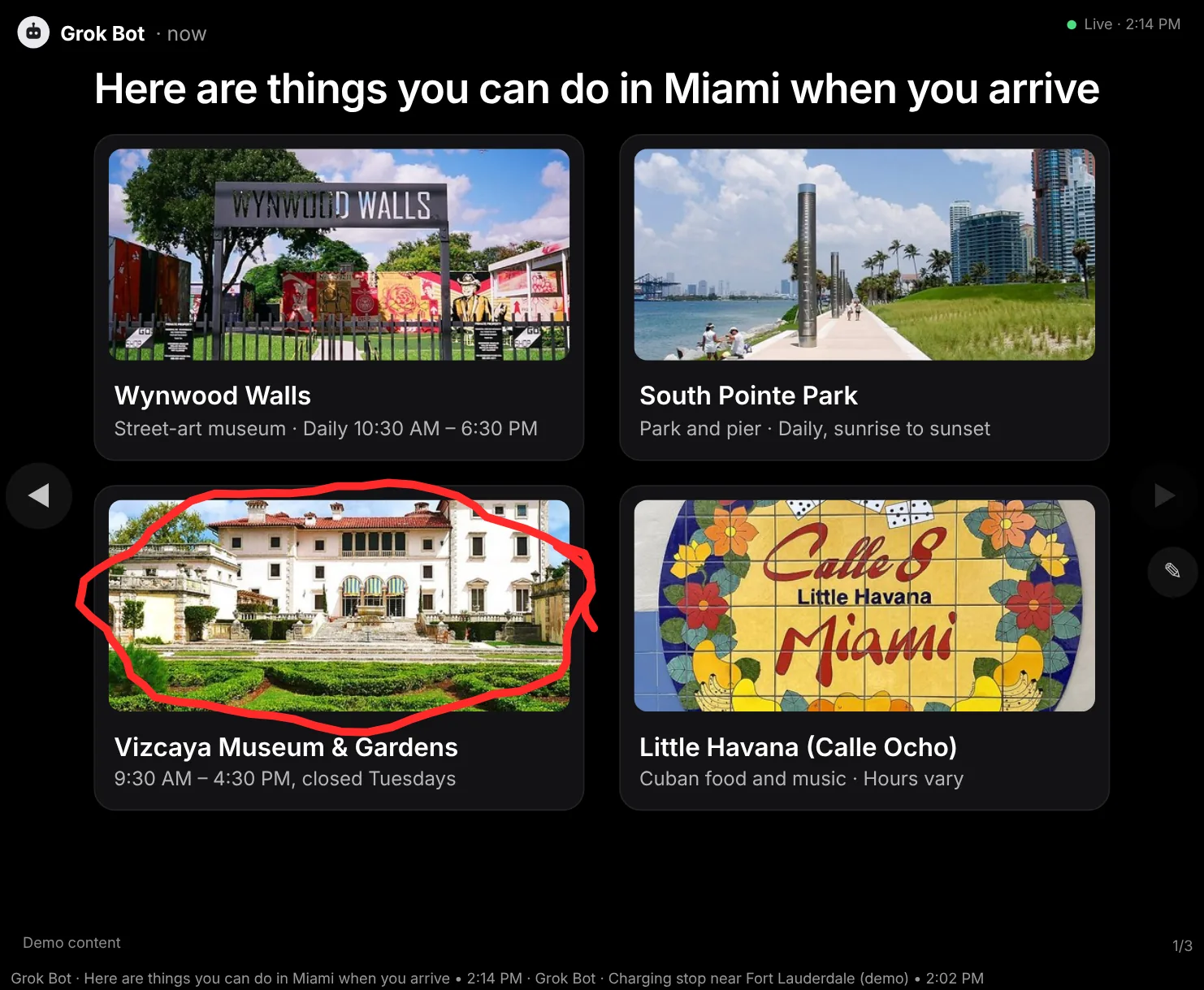
Open botcanvas.us in the car's browser, type the pairing code your bot gives you, and whatever your bot sends (text, pictures, links, charts) shows up full screen.
Pair this screen
Ask your bot for a pairing code: 6 letters and numbers, like K7M2QX. This screen then stays paired with your board for 30 days.
Check your local laws. BotCanvas works while you're parked, and passengers can use it while you drive.
In your Tesla
BotCanvas is a big-screen board for your bot. Your bot (Grok, ChatGPT, Claude or your own) pushes content, and the car's browser shows it full screen, one item at a time.
Large ◀ ▶ buttons step back through the last 10 screens.
New items show up right away. Pause holds updates until you're ready, and nothing changes while you draw.
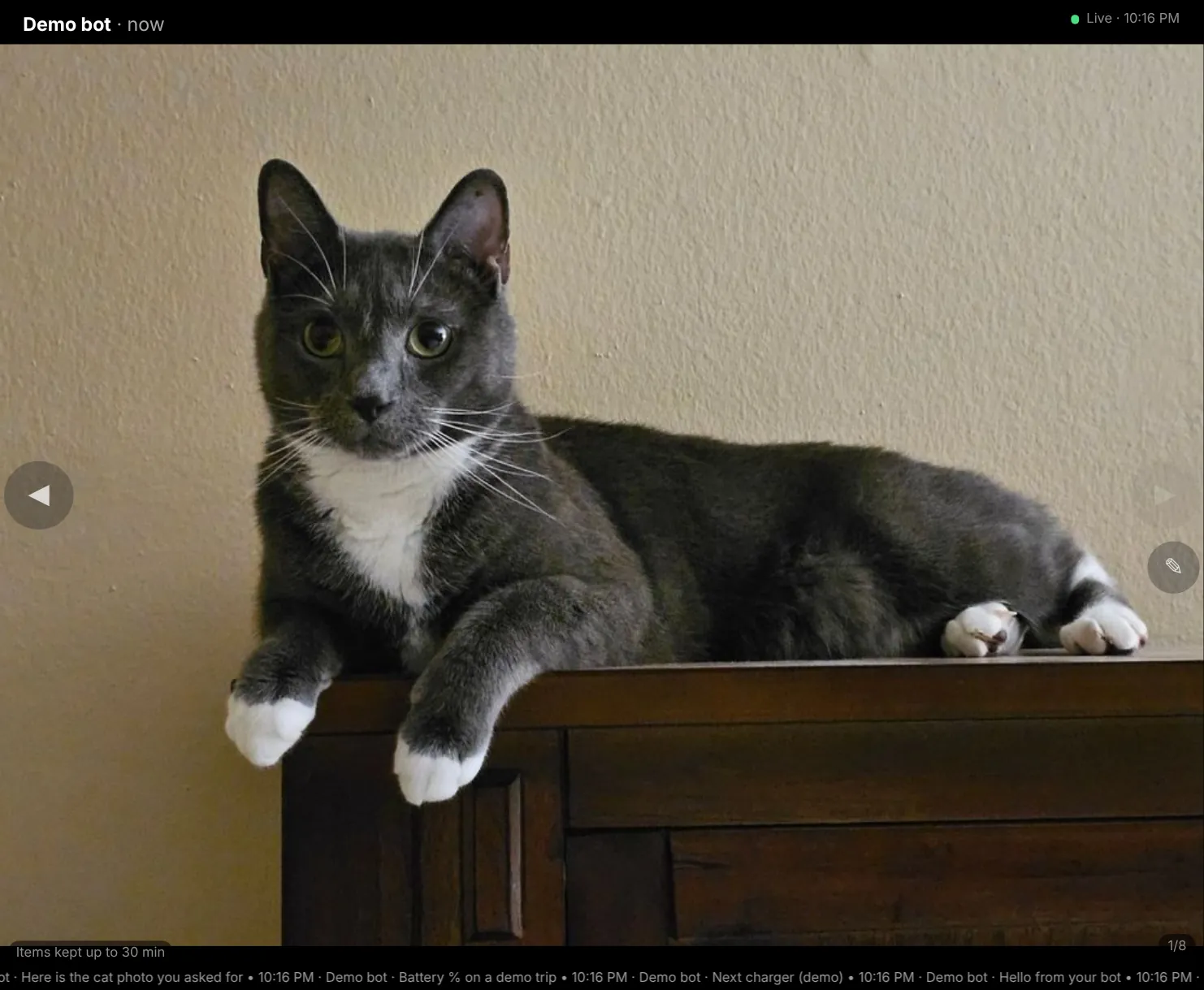
Tap the pen, draw on the screen with your finger, and tap Done. Your bot can see what you marked.
Made for time in a parked car, like while you're charging or waiting.
Your bot runs wherever you use it, for example the app on your phone. Tesla's built-in voice commands don't send anything to BotCanvas.
Check your local laws. BotCanvas works while you're parked, and passengers can use it while you drive. On FSD (Supervised), your bot can put something on screen for whoever's riding with you; the driver keeps their eyes on the road.
Highlight and send back
Highlight something on the board and send that part back to your bot: tap the pen, circle or underline it with your finger, and tap Done.
Your bot gets a picture of the screen with your marks, plus which item you drew on, the next time it checks. It can then send an updated version to the board.
Draw, edit, repeat
Any screen
BotCanvas isn't just for cars. Open botcanvas.us on any screen with a browser, such as a TV, a wall display, a kiosk or a laptop on a projector, and pair it with a code. Your bot then runs the screen: it shows each item full screen, and every paired screen updates live.
Add another screen
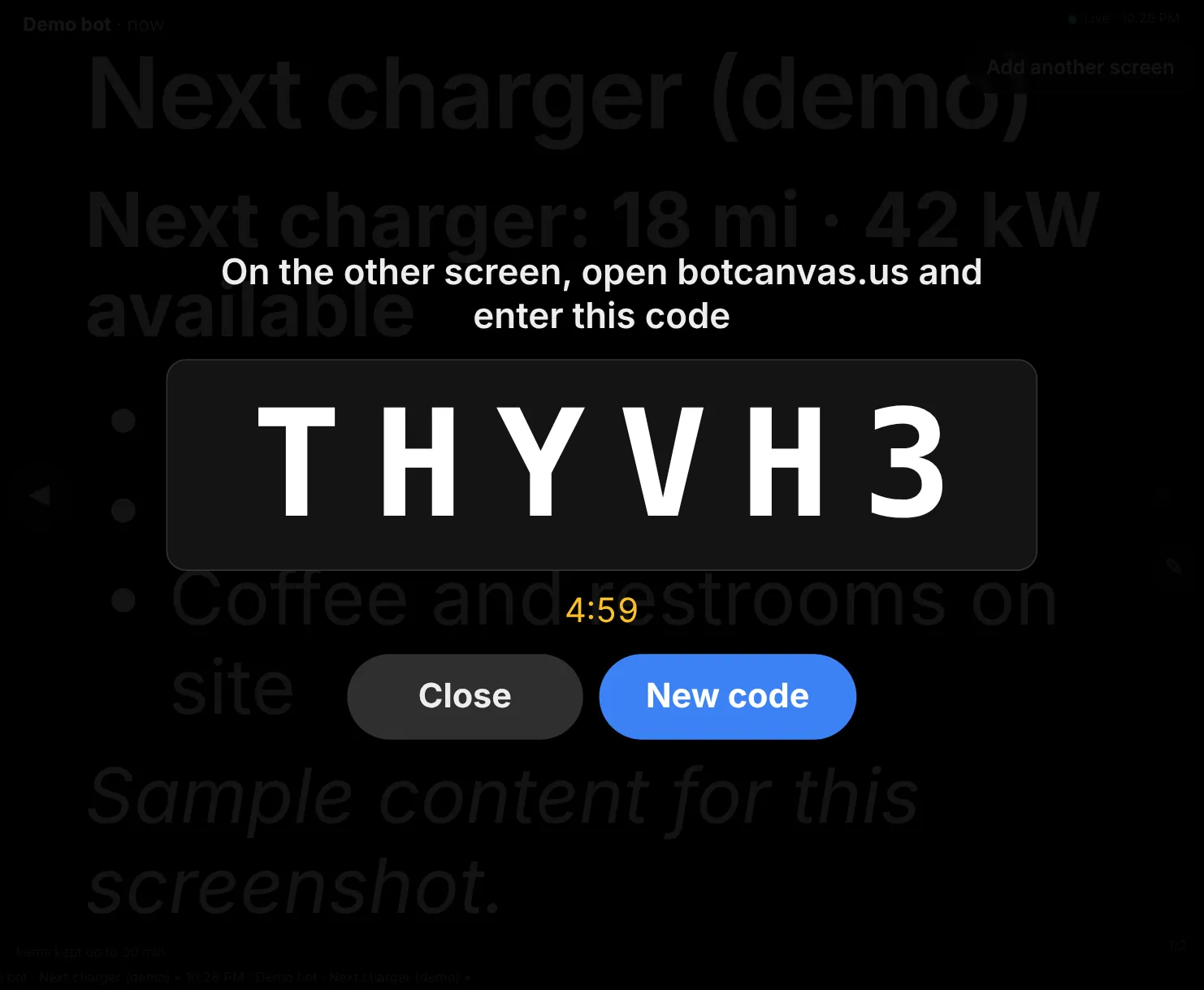
Already have the board open? Tap Add another screen to get a code for a second display.
The code shows up big, works once, and lasts 5 minutes. Type it on the other screen at botcanvas.us, and both screens show the same board, live.
Connect your assistant
Copy these instructions and give them to your assistant. That's all it needs to start using your board.
Use BotCanvas to show things on my screen. Connect to https://botcanvas.us/connect (or read https://botcanvas.us/llms.txt for how). When I ask you to show, draw, chart, or put something on my screen, push it to my BotCanvas board. Use the BotCanvas connector tools to show things (don't write code or curl, your code sandbox has no internet). You may not be able to download, generate or view images; that's fine. Push text or charts, and for pictures pass a real public image link to push_image. If you aren't paired yet, get a pairing code. If you can open a web page on my screen (like the browser in my Tesla), open https://botcanvas.us/?code=<code> there to pair in one step; otherwise tell me the code to enter at botcanvas.us. If I draw on the board, check what I marked.
Paste it into your assistant's custom instructions or a new chat: Grok, Grok Bot, ChatGPT, Claude, Cursor, and others.
Add it once, and your assistant can put things on your screen whenever you ask.
https://botcanvas.us/connectFor Claude, Cursor and VS Code.
When your assistant asks you to sign in, type a pairing code from your bot, or start a new board. All assistant steps
Privacy
Feedback & bugs
Tell me on X. Post what you saw, which screen or car you were on, and what you asked your bot to do.